2 of 5 repositories have new commits · click the bar to open it
Know which repositories have new commits, without clicking.
FetchBar watches your local clones and puts one colored dot per repository in the menu bar. Filled means the remote is ahead of you. Click to read the incoming commits and fast-forward, without opening a terminal.
- 1.1.1
- macOS 14 or later
- Apple Silicon and Intel
- MIT

One dot per repository. That is the whole interface.
FetchBar draws its own menu bar item, so a repository can have a colour instead of a place in a list. After a week you stop reading the menu bar and start recognising it: red is the site, blue is the API, and you know something happened before you have looked at it properly.
- Filled
- The remote has commits you have not seen yet.
- Faded
- Up to date. Nothing to do.
- !Ringed
- The last check failed. Expand the row and it tells you why.
Or don’t use dots at all.
Three menu bar styles, switchable in Settings with a live preview. Dots gives every repository its own; Count collapses everything into one number, repositories or commits, whichever you prefer; Icon only shows the glyph with a small accent dot when something is new. Each repository gets a dot up to a limit you choose, eight to begin with, ordered the way the panel is, so the ones with news come first; whatever does not fit is counted as a +N.
Dots
Count
Icon only
Everything you’d open a terminal for, in 340 points.
The commits, before you fetch them
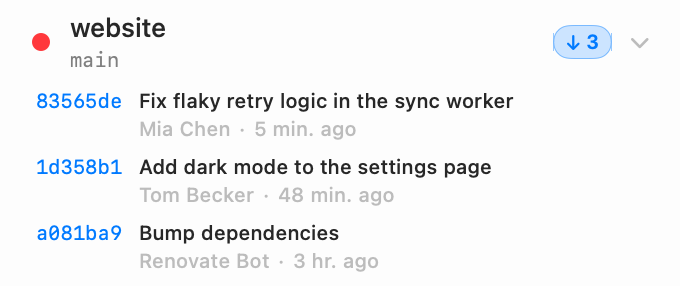
The panel opens on a shortcut of your choosing and answers to the keyboard: arrows to move, → to expand, ↩ to open the repository where you last worked on it. Expand a repository and the incoming commits are already there: short SHA, subject, author, how long ago. Click one to open it on GitHub, GitLab, Bitbucket, Azure DevOps, Codeberg or sourcehut. Commits you haven’t seen are marked; the rest are context.
Pull, without the part where you get it wrong
Pull is fast-forward only. No merge commits, no rebase, no surprises. If your branch has diverged or your working tree is dirty, FetchBar refuses and says which. Mark as seen clears the dot without changing a single byte.

Set it once and forget the app exists
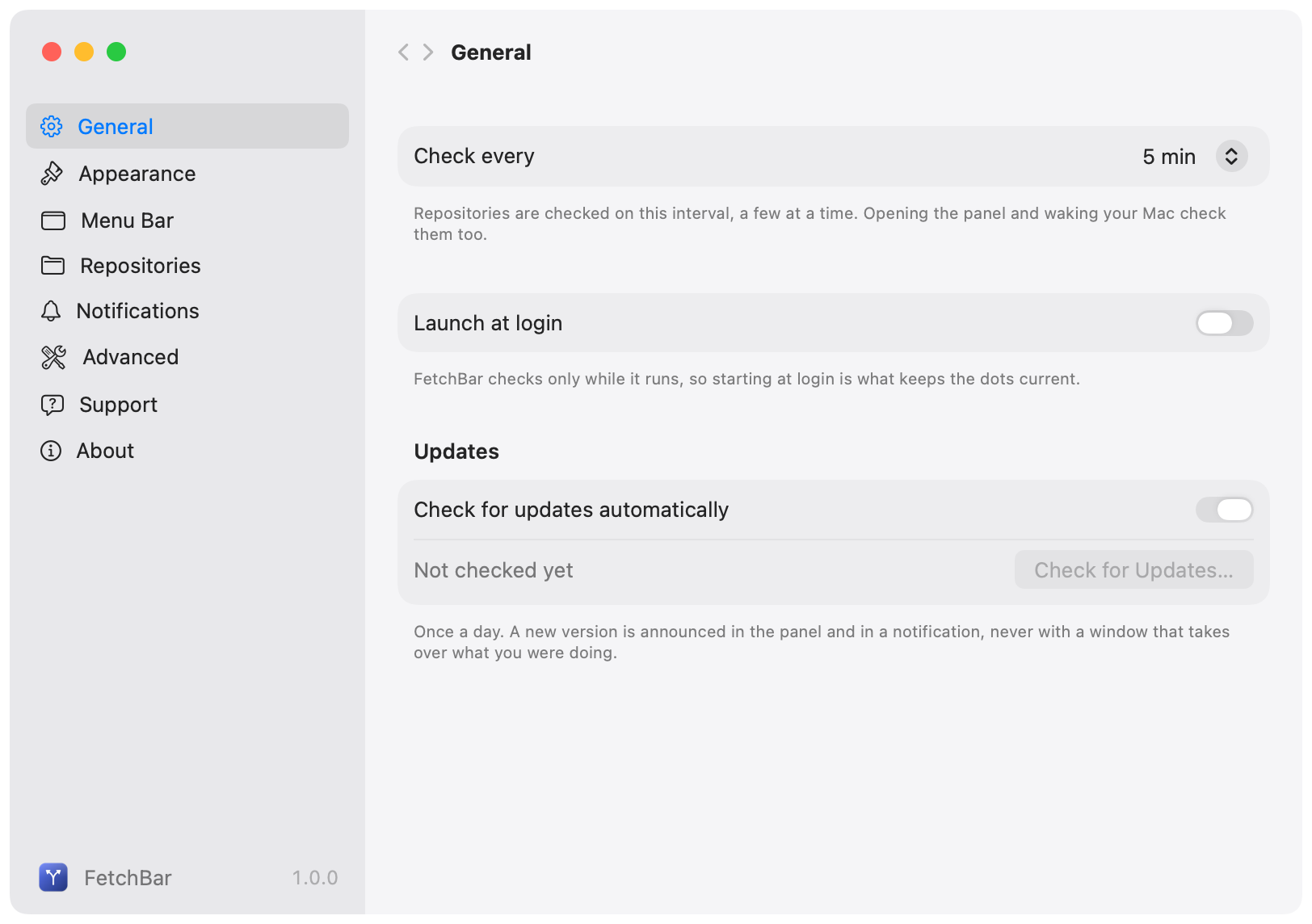
Settings is a sidebar of small panes, laid out the way System Settings is, rather than one long list. General has the check interval, launch at login and updates; Appearance the theme and how the panel opens; Menu Bar the style, with a live preview. Repositories holds the default Open in application and the folders to watch for new clones, Notifications the new-commit and unpushed-commit reminders. Advanced keeps the parts you touch once: which git binary to use, extra PATH entries so your credential helper is found, the fetch timeout, how many checks run at a time, and whether to probe with ls-remote before fetching.
Open in sends a repository straight to wherever you work on it: Finder, Terminal, iTerm, Ghostty, VS Code, Cursor, Zed, Xcode, Fork, Tower. It offers the ones you actually have installed, and anything else you add yourself. Each repository remembers what you opened it with last, so the button is already right the next time.
The same menu goes the other way too, out to the web: the repository page, its pull requests, issues, CI runs, branches, tags and releases. Every one of those addresses is worked out from the remote you already have, so nothing is connected, no account is linked and no token is stored anywhere. When commits are waiting, View 3 New Commits opens the compare view for exactly the three FetchBar is telling you about; on a branch you have already pushed, New Pull Request opens the form. GitHub, GitLab, Bitbucket, Gitea and Azure DevOps are understood, and a page a forge does not have is left out rather than guessed at.
When something lands, you get one notification with Open and Pull on it, and FetchBar never notifies you twice about the same commits. It also reminds you about your own commits: a branch that has sat ahead of its remote for a day gets a nudge, because forgotten local work costs more than a missed pull. Silence any of it for an hour, for the evening, or one repository at a time. A timed silence lifts itself.
It reads your repositories. It never writes to them.
This is every command FetchBar runs on a check. There is no sixth one.
-
git status --porcelain=v2 --branchReads the branch, its upstream and the state of your working tree. It does not write the index.
-
resolve the watched refYour branch’s upstream, then the remote’s default branch, then your per-repository override. No command, no network.
-
git ls-remote --heads origin mainAsks the remote for one branch tip. A few hundred bytes, no objects transferred.
-
git fetch --no-write-fetch-head --no-auto-maintenance originOnly if that tip actually moved. Nothing is checked out, nothing is merged, and maintenance never runs.
-
git rev-list --left-right --count · git log HEAD..origin/mainCounts ahead and behind, and reads the commits you don’t have yet.
- Your working tree is never touched. No checkout, no merge, no stash, no gc. Pull is the only command that changes anything, and only when you press it.
- It never asks you for credentials. Checks run with GIT_TERMINAL_PROMPT=0 and a non-interactive SSH setup, using the same keys, agent and credential helpers your terminal already uses.
- It gives up quickly. Every command has a hard timeout, authentication failures back off exponentially instead of retrying into a lockout, and one broken repository never slows the others down.
- It knows when to stop. Checks pause when you are offline or in Low Power Mode and resume after your Mac wakes. Worktrees that share a .git directory are never fetched at the same time.
- Nothing leaves your Mac. No backend, no account, no telemetry, no analytics, no crash reporter.
- You can check all of it. MIT licensed, and the whole check pipeline is one file called RepoChecker.swift.
Two steps and it is in your menu bar.
 Applications
- Open the disk image and drag FetchBar into Applications. The build is signed with a Developer ID and notarized by Apple, so macOS opens it without a warning. FetchBar lives in the menu bar, so there is no Dock icon.
- Click the branch icon in your menu bar. Add your first repository, or drop a folder onto the panel. Drop a folder that contains repositories and it adds all of them.
The things worth knowing before you download.
Does it touch my repositories?
It reads them. A check runs git status --porcelain=v2 for local state, then git ls-remote to see whether the branch tip moved, and only fetches when it did. Fetching writes to .git, exactly as git fetch in your terminal does, and nothing more. Your working tree, index, stash and branches are never modified, maintenance and gc never run, and submodules are left alone. The only command that changes your checkout is Pull, and only when you press it.
Will it ask for my SSH passphrase or a token?
No. Checks run non-interactively and use the same keys, ssh-agent and credential helpers your terminal does, including core.sshCommand and insteadOf rewrites. If a credential isn’t available the check fails, the dot becomes a ring, and FetchBar backs off instead of retrying you into a lockout. If your helper lives somewhere unusual, add its directory under Settings → Advanced.
Which git hosts work?
Any remote git itself can reach. FetchBar only talks to git, never to an API. Clickable commit links are built for GitHub (including Enterprise hostnames), GitLab, Bitbucket, Azure DevOps, Gitea, Forgejo, Codeberg and sourcehut. Other remotes still show the full commit list; the commits just aren’t links.
How many repositories can it watch, and what does that cost my battery?
As many as you like. The menu bar shows as many dots as you allow it: eight by default, the ones with news first. The rest are counted as a +N. A check is one ls-remote per repository, a few hundred bytes, and a fetch only when the tip actually moved. Checks are staggered, run a few at a time, and pause completely when you’re offline or in Low Power Mode.
Where does it keep its data?
Two JSON files in ~/Library/Application Support/FetchBar/: your repository list and a cache of the last check. Delete them and FetchBar starts empty. Nothing is stored anywhere else, and nothing is sent anywhere.
Is it really free, and what happens to it?
Yes: MIT licensed, no paid tier, no upsell, no sponsor prompt in the app. It exists because its author wanted it on their own menu bar. The source is on GitHub; if it ever stops being maintained, you have every line of it.